All products featured on News Of Austin are independently selected by our editors.
At a Glance
- Simple tweaks can make smartphones safe for seniors.
- Tested on iPhone 16 and Pixel 10 Pro XL.
- Settings cover lock screen, home screen, shortcuts, font size, ringtones, tracking, emergency info, and security.
- Why it matters: These changes help older users stay connected, protected, and confident with their device.
For many older adults, navigating a modern smartphone can feel daunting. By following a few targeted adjustments, caregivers can transform a standard iPhone or Android into a user-friendly companion that prioritizes safety and simplicity. This guide walks through each step, from choosing a phone to setting up emergency contacts.
Choosing a Phone
While specialty senior phones exist, most families find a regular iPhone or Android works best when paired with a few tweaks. If you already own an older model, it can often be repurposed. For new purchases, consult the latest buying guides for the best devices.
Setting Up the Lock Screen
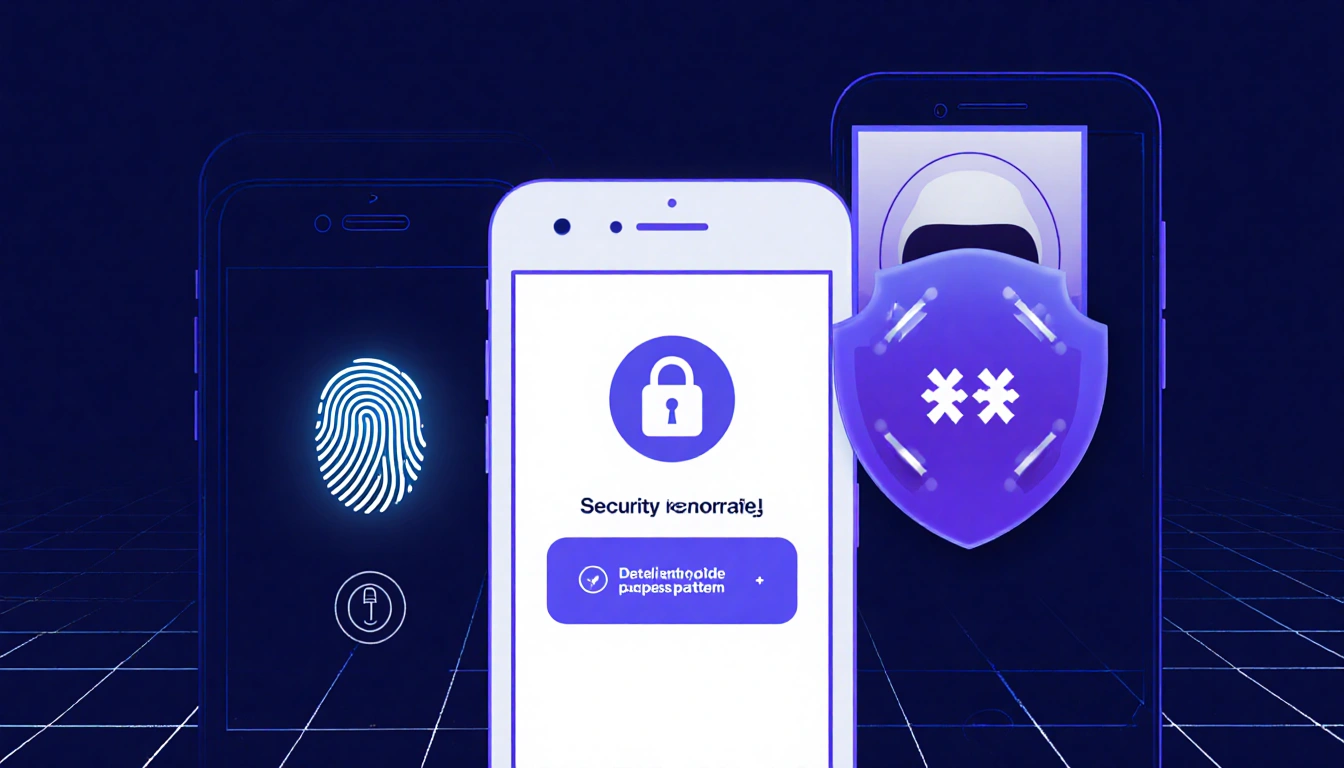
A secure lock screen is essential. On Android, navigate to Settings → Security and privacy → Device unlock → Screen lock, while on iPhone go to Settings → Face ID & Passcode or Touch ID & Passcode. Use a fingerprint, face unlock, or a memorable PIN, password, or pattern.
| Platform | Settings Path |
|---|---|
| Android | Settings → Security and privacy → Device unlock → Screen lock |
| iPhone | Settings → Face ID & Passcode (or Touch ID & Passcode) |
Tidying the Home Screen
Simplify the home screen by removing unused icons. On Android, tap and hold an icon, drag it to the Uninstall or Remove area. On iPhone, tap and hold until icons wiggle, then drag or tap the X to uninstall.
Adding Shortcuts for Useful Tasks
Place shortcuts for calling or messaging close contacts. On Android, tap and hold the home screen, select Widgets → Browse → Contacts → Direct dial. On iPhone, use the Shortcuts app to add a contact shortcut to the home screen.
Simplifying the Interface
Android users can switch to a simpler launcher. Samsung offers Easy Mode via Settings → Display → Easy Mode. Alternatives like Simple Launcher, Big Launcher, or Senior Home provide larger icons and a cleaner layout.
Adjusting Font Size
Larger text improves readability. On Android, Settings → Display and touch → Display size and text or Settings → Accessibility → Display size and text. On iPhone, Settings → Display & Brightness → Text Size, then Settings → Accessibility → Display & Text Size → Larger Text.
Ringtones and Notifications
Set audible alerts that older users recognize. On Android, Settings → Sound and vibration to choose ringtones and vibration levels. On iPhone, Settings → Sounds & Haptics to adjust volume, haptics, and LED flash for alerts.
Setting Up Phone Tracking
Enable tracking to locate a lost device. On Android, use Google’s Find Hub app; on iPhone, use Find My. For location sharing, Android Maps → Profile → Location sharing → New share, and iPhone Find My → People tab → + → Share My Location.
Adding Emergency Information
Add medical ID and emergency contacts. On Android, Settings → Safety and emergency → Medical information and Emergency contacts; on iPhone, Health app → Medical ID. Both platforms support Emergency SOS triggers: Android power button five times, iPhone power button + volume button or five rapid presses.
Security Tips
Discuss phishing scams and enable two-factor authentication. Install Malwarebytes Security on Android or Malwarebytes Mobile Security on iPhone to guard against malware.
Final Steps
After setting everything up, give a hands-on tutorial. Show how to answer calls, send messages, and use the new shortcuts. Follow up with a quick practice test to build confidence.
Key Takeaways
- Lock screen security is non-negotiable for older users.
- Removing clutter and adding contact shortcuts make daily use easier.
- Adjusting font size, ringtones, and tracking ensures safety and accessibility.
By applying these straightforward adjustments, caregivers can turn a standard smartphone into a reliable, senior-friendly tool that keeps loved ones connected and protected.